View a Challenge Response
To view the details of a Challenge Response:
-
Select Challenges from the top navigation bar, then select Challenges > Challenge Responses from the side navigation menu. The Challenge Responses screen is displayed.
-
Optionally, search for the desired Challenge Response (see Search for a Challenge Response for more information on the available search options).
-
Click the desired Challenge Response. The Challenge Response Details screen is displayed.
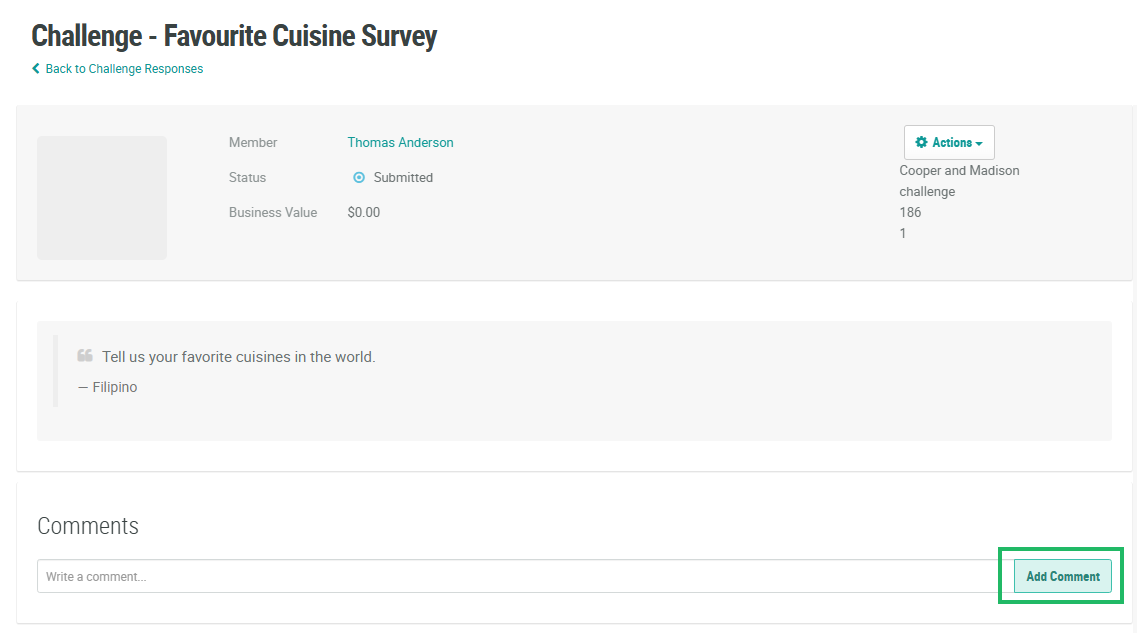
The header area of the Challenge Response Details screen displays many of the high-level properties of this Challenge Response, including the Member who submitted the Challenge Response, the Response status, and its Business Value.
From the header area, you can change the status of this Challenge Response. See Change Challenge Response Status for more information.
Also from the header area, you can post this Challenge Response to a News Feed. See Post Challenge Response to a News Feed for more information.
Also from the header area, you can flag this Challenge Response. See Flag a Challenge Response for more information.
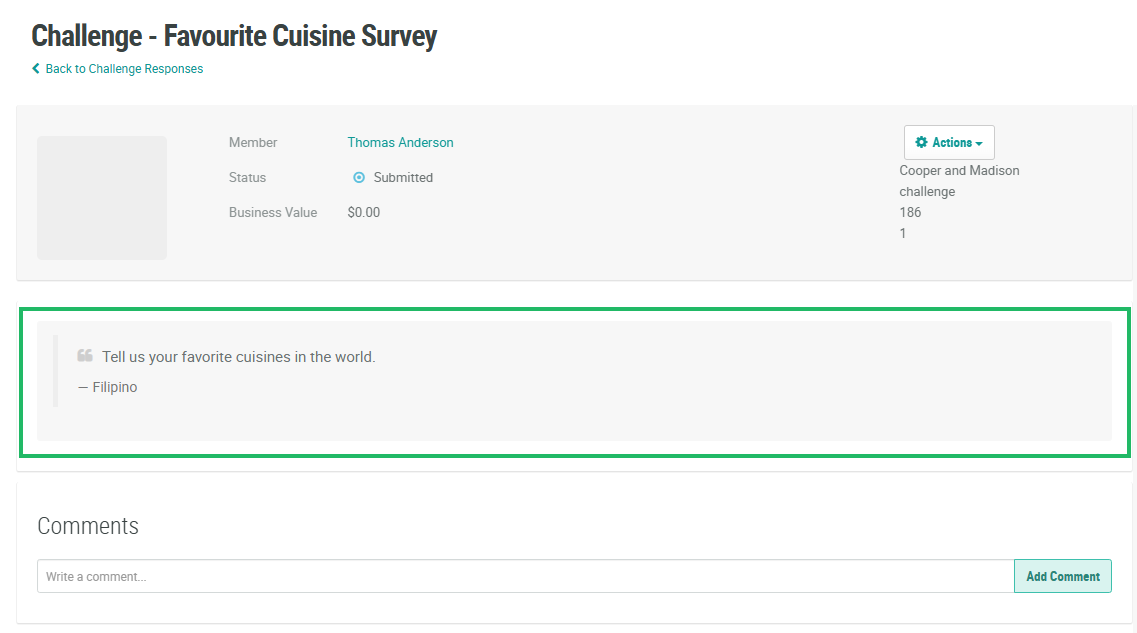
Beneath the header, the platform displays the details of the Member's response. The details displayed here will vary depending on the Challenge type.
For example, for any of the Challenge types that require the Member to submit media (Submit Photo, Submit Video, etc), the Member's submission is displayed. For the Multi-Question Survey Challenge type, the platform displays the Member's answers to the survey questions.
Beneath the Member's response, the platform allows you to attach a note or comment to the Challenge Response. Enter the text of the comment in the Comment field, then click Add Comment.